
How to Keep Your GE Appliances WiFi Module Updates
Learn how to update GE appliance software and set up your WiFi Connect module. Step-by-step guide for the SmartHQ app, firmware updates, and the PBX23W00Y1 module.
In the old days, a refrigerator or an oven was a "static" purchase. The features it had on the day you bought it were the only features it would ever have until the day it hit the scrap heap. But as someone who has lived through the transition to a smart home, I can tell you that the game has changed. Today, my GE oven actually gets better with age—not because of magic, but because of software updates.
Whether you’re trying to unlock a new "Air Fry" mode or simply trying to fix a pesky connection bug, keeping your GE appliance software up to date is the key to longevity. Here is everything I’ve learned about navigating GE’s digital ecosystem, from the SmartHQ app to the elusive WiFi modules.
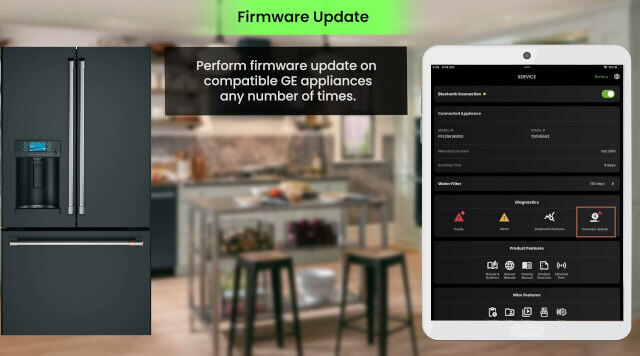
Why Software Updates Matter for Your Kitchen
You might wonder, "Why does my dishwasher need a software update?" It sounds like a joke until you realize that these updates often include critical security patches, energy-efficiency optimizations, and even brand-new cooking algorithms.
GE Appliances pushes two types of updates:
Critical Updates: These are high-priority fixes (security or essential system stability) that are often pushed automatically once your appliance is connected to your home network.
Feature/Performance Updates: These are the fun ones. You’ll get an "Update Available" notification via the SmartHQ app, allowing you to choose when to download new features like "Turkey Mode" for Thanksgiving or "Steakhouse Mode" for your range.
The Heart of the Connection: The SmartHQ App
Everything starts with the SmartHQ app. In my experience, the biggest hurdle for most people isn't the update itself—it's the initial pairing.
If you’re struggling to see an update, first ensure your appliance is actually "online" in the app. I once spent twenty minutes frustrated that my oven wouldn't update, only to realize my router had assigned it a weak signal because it was hidden behind a metal cabinet. Pro tip: If you have a large house, a WiFi extender near the kitchen can save you hours of troubleshooting.
Dealing with WiFi Modules: Built-in vs. Optional
Not all GE appliances have WiFi baked into the circuit board. GE categorizes them into two groups:
1. Built-in WiFi
Most modern Profile or Café series appliances have WiFi built-in. Once you pair them with the SmartHQ app, the software and the WiFi module update themselves over-the-air (OTA).
2. WiFi Optional (The PBX23W00Y1 Module)
If your appliance is labeled "WiFi Optional," you’ll need a physical piece of hardware—specifically the SmartHQ Connect Module (model PBX23W00Y1).
The Experience: Installing this is usually as simple as plugging it into a specialized port (often hidden behind a plastic tab).
Updating the Module: Even this little stick has its own firmware. The SmartHQ app will notify you when the module itself needs an update to maintain a stable handshake with your router.
How to Update Your GE Appliance Software
If you see that "Update Available" badge in your app, here is how to handle it without the "Update Failed" headache:
Check the State: Make sure your appliance isn't currently running. You don't want to trigger a firmware flash on your dryer while it’s mid-cycle.
Verify the Signal: Ensure your phone and the appliance are on the same 2.4 GHz network (most appliances don't like 5 GHz).
Initiate through SmartHQ: Tap the notification, read the "What's New" (it’s actually quite interesting to see what they’ve improved), and hit "Apply."
Wait it Out: The download can take anywhere from 2 to 10 minutes. Resist the urge to unplug the machine or toggle your WiFi during this time.
Troubleshooting: What if it Gets Stuck?
We’ve all been there—the progress bar hits 99% and just stays there. From my own trial and error, and from talking to service techs, here is the "Golden Rule" for smart appliances: The Power Cycle.
If an update fails or the WiFi module refuses to connect:
Unplug the appliance (or flip the breaker) for a full 60 seconds.
Restart your SmartHQ app.
Try the update again.
This "hard reset" clears the cache on the control board and usually fixes 90% of connectivity hang-ups.
Frequently Asked Questions
How do I update the software on my GE smart appliance?
To update your software, connect your appliance to the SmartHQ app via WiFi. When an update is available, you will receive a notification on your smartphone. Simply follow the in-app prompts to download and install the latest firmware, ensuring your appliance is not in use during the process.
What is the GE PBX23W00Y1 WiFi Connect Module?
The PBX23W00Y1 is an external hardware communication module used for GE appliances labeled as "WiFi Optional." Placed into a specific port on the machine, it enables your appliance to connect to the SmartHQ app for remote monitoring, diagnostics, and essential software feature updates.
Why is my GE appliance software update failing?
Most update failures are caused by a weak 2.4 GHz WiFi signal or the appliance being in an active cycle. To fix this, ensure your router is within range, close the SmartHQ app, and perform a "power cycle" by unplugging the appliance for 60 seconds before attempting the update again.
Final Thoughts
Connecting your appliances might feel like an extra chore, but the payoff is real. I’ve seen GE add "Air Fry" to ovens that didn't have the button on the console when they were first sold. That’s the power of Software Updates and a solid WiFi Connect setup.
If you hit a wall that a power cycle won't fix, don't hesitate to call the GE Connected Home Support Line at 1-800-220-6899. They are surprisingly helpful with these niche digital issues.

Related Posts
Guide to Discontinued GE Monogram Appliances and Parts
Struggling with discontinued GE Monogram appliances? Learn how to find NLA parts, download old Monogram manuals, and navigate repair solutions when your luxury kitchen components are no longer available.
How to Get Started in the Appliance Repair Business
How to get started in the Appliance Repair business. You're probably wondering how do you get started in the appliance repair business? Well, I would say that starting is not necessarily a big deal.
Your GE Ductless System: A Personal Guide to Technical Support, Manuals, and Smart Features
Need GE Ductless Technical Support? Our guide covers finding your Ductless Air Conditioner Manual, troubleshooting GE Ductless WiFi Setup with the SmartHQ app, and direct contact details for GE/Haier service. Get expert tips to fix errors and restore your home comfort today.
Notice: Internet users spontaneously contributed the article content, and the article views only represent the author himself. This site only provides storage services, does not have ownership, and bears relevant legal liabilities. If you find plagiarism, infringement, or illegal content, please contact the administrator to delete it.