
Need help with GE Smart appliance support? Learn how to connect my GE fridge to WiFi using the SmartHQ™ app, troubleshoot common WiFi setup and connecting issues, and find direct contact info for the Connected Home Support Team. Get your GE kitchen back online today!
In the modern home, a refrigerator isn't just a cold box for your groceries; it’s a command center. GE Appliances has been at the forefront of this evolution with their "Connected Home" suite. However, as anyone who has ever tried to sync a high-tech fridge to a home router knows, the "smart" part can sometimes feel a bit complicated.
Whether you’re trying to get your new GE Profile fridge to send you door-ajar alerts or simply want to preheat your oven from the grocery store, getting the connectivity right is the first hurdle. In this guide, we’ll dive into the specifics of GE Smart appliance support, how to navigate the WiFi setup and connecting process, and when it’s time to call in the pros from the Connected Home Support Team.
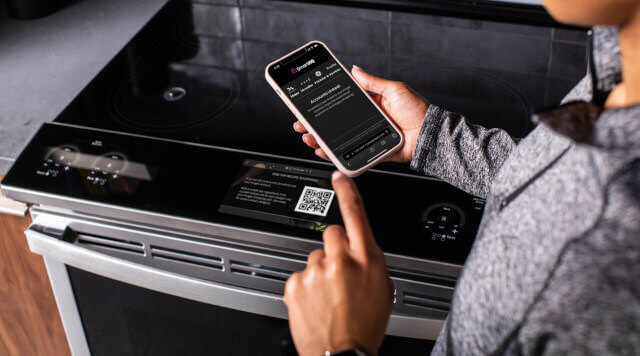

The Heart of the Connection: The SmartHQ™ App
Before you even touch your appliance, the bridge between your phone and your kitchen is the SmartHQ™ app. Available for both iOS and Android, this app is the universal remote for almost all modern GE, Profile, and Café appliances.
Pro Tip from Experience: When you first create your account, make sure you use a stable email address and verify it immediately. I’ve seen many users get stuck in a "login loop" simply because the verification email ended up in their spam folder, or they tried to connect the appliance before the account was fully active.
How to Connect Your GE Fridge to WiFi: Step-by-Step guide
Connecting a refrigerator is slightly different than a washer or a microwave because the control panels vary. Here is the most reliable path to success:
Locate Your Credentials: Every GE smart fridge has a "Connected Appliance Information" label. You’ll usually find this on a sticker inside the refrigerator, often on the right-side wall of the fresh food section. It contains the Network Name (SSID) and the Password. Take a photo of this—you’ll need it!
Enable WiFi on the Fridge: * LCD Touch Screens: Tap "Settings" -> "WiFi" -> "Turn On." The WiFi icon should start flashing.
Pushbutton Models: Look for a button labeled "WiFi" or "Remote Connect." You usually need to hold this for about 3 seconds until the light starts blinking.
The "Handshake": Open the SmartHQ app and tap the "+" icon to add a new appliance. The app will ask you to join the fridge’s temporary WiFi network (something like GE_MODULE_XXXX). Go to your phone’s WiFi settings, join that network, and then return to the app.
Connect to Your Home Network: Once the app "talks" to the fridge, it will show you a list of local WiFi networks. Select yours, enter your home password, and wait.
Personal Troubleshooting Note: If the connection fails at the 99% mark, it’s almost always a 2.4GHz vs. 5GHz issue. Most GE appliances only support 2.4GHz networks. If your router "merges" both bands into one name, you might need to temporarily disable the 5GHz band or move your router a bit closer for the initial pairing.
When Things Get Sticky: The Connected Home Support Team
Sometimes, despite following every manual to the letter, the technology just won't cooperate. This is where the Connected Home Support Team comes in. Unlike general GE customer service—who handle mechanical repairs like broken ice makers—this team is specifically trained for software, apps, and WiFi modules.
Phone Support: You can reach them at 1-800-220-6899. Their hours are quite generous: Monday – Friday (9 am – 9 pm EST) and Saturday (9 am – 3 pm EST).
Email Support: If you aren't in a rush, emailing connected@help.geappliances.com is a great way to send screenshots of the error codes you are seeing in the SmartHQ app.
What to expect: Based on user feedback and personal accounts, this team is generally more tech-savvy than the average support line. One user shared that after three failed attempts to connect their GE Profile washer, a support agent walked them through a "hard reset" of the WiFi module (unplugging the unit for 60 seconds and then holding a specific button combo), which finally cleared a cached error.
Troubleshooting Common "Smart" Glitches
Beyond the initial setup, here are a few things that often trip up smart home enthusiasts:
The "Offline" Appliance: If your fridge was connected but suddenly shows as "offline," don't delete it from the app immediately. Often, a simple power cycle (flipping the breaker for a minute) will force the module to reconnect to the router.
App Updates: Ensure your SmartHQ app is always up to date. GE frequently pushes "Over-the-Air" (OTA) firmware updates to appliances through the app. If your fridge is acting buggy, check the "Product Info" section in the app to see if a software update is pending.
Router Distance: Large stainless steel appliances are essentially giant Faraday cages—they can block WiFi signals. If your kitchen is far from the router, a simple WiFi extender placed halfway between the router and the kitchen can solve 90% of "dropping" issues.
Frequently Asked Questions
How do I get my GE appliance back online if it shows "Disconnected"?
Most connectivity issues can be resolved by power-cycling your appliance. Unplug the unit or flip the circuit breaker for 60 seconds, then plug it back in. Ensure your SmartHQ™ app is updated to the latest version and that your home WiFi signal reaches the kitchen.
Does GE SmartHQ™ work with 5GHz WiFi networks?
No, most GE smart appliances are designed to connect specifically to 2.4GHz WiFi bands. If you have a dual-band router with a single SSID, you may need to temporarily disable the 5GHz band or adjust your router settings to ensure the appliance can complete the initial WiFi setup and connecting process.
Who do I contact if the SmartHQ™ app fails to connect to my fridge?
For specific troubleshooting regarding WiFi and app features, contact the Connected Home Support Team at 1-800-220-6899 (Mon-Sat) or email connected@help.geappliances.com. They specialize in resolving software and connectivity glitches that general appliance repair services may not cover.
Final Thoughts
A connected kitchen should make your life easier, not more stressful. By using the SmartHQ app, keeping your Connected Home Support contacts handy, and understanding the nuances of the WiFi setup and connecting process, you can ensure your GE appliances stay smart and responsive.
Remember, if you’re struggling with how to connect your GE fridge to WiFi, you aren't alone—even the most tech-proficient homeowners occasionally need to give the support team a call. Once you're connected, the convenience of remote diagnostics and alerts is well worth the 15-minute setup!
Related Posts
Smart HQ App For GE Profile Smart Washer, GE Profile Smart Dryer
I wanted to give you guys a brief overview of the Smart HQ app that you need to use for your GE Profile Smart Washer, and your GE Profile Smart Dryer HQ actually stands for Headquarters.
GE Profile Smart Indoor Smoker: Getting Started
GE Profile Smart Indoor Smoker. Getting started with your GE Profile Smart Indoor Smoker Position the smoker away from durable materials and any items that may be sensitive to heat.
Smart Choice Appliance Granite Countertop Dishwasher Installation Kit Review
Smart choice appliance. Today I have an exciting product to review for you the Smart Choice Granite Countertop Dishwasher Installation Kit.
Notice: Internet users spontaneously contributed the article content, and the article views only represent the author himself. This site only provides storage services, does not have ownership, and bears relevant legal liabilities. If you find plagiarism, infringement, or illegal content, please contact the administrator to delete it.