
How Do I Connect My GE Oven to Google Home? A Step-by-Step Guide to a Hands-Free Kitchen
Wondering “How do I connect my GE oven to Google Home?” Discover the step-by-step process to link SmartHQ with Google Assistant, troubleshoot WiFi issues, and use voice commands to preheat your GE smart appliances.
Have you ever been knee-deep in pizza dough, flour all over your hands, only to realize you forgot to preheat the oven? Or perhaps you’re snuggled on the couch and can’t remember if you actually turned the bake cycle off?
As someone who loves gadgets but occasionally struggles with getting them to "talk" to each other, I’ve found that connecting my GE appliance to Google Home was a total game-changer. It’s not just about the novelty of talking to your stove; it’s about genuine convenience.
If you’re wondering, "How do I connect my GE oven to Google Home?" you’ve come to the right place. In this guide, I’ll walk you through the process, share some hard-earned tips from my own setup, and help you unlock the full power of Google Assistant for your kitchen.
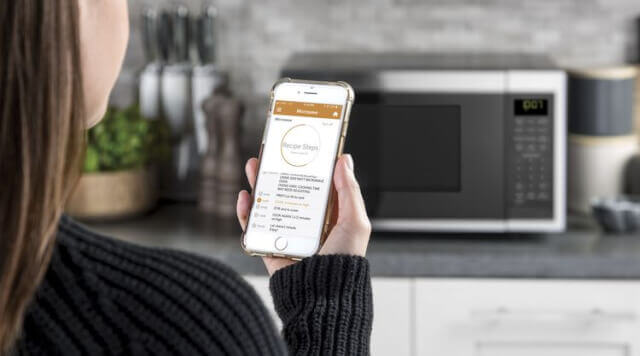

Phase 1: The Foundation – Getting SmartHQ Ready
Before Google Home can see your oven, your oven needs to be "online." GE uses a dedicated platform called SmartHQ™ (you might remember it as GE Kitchen or U+ Connect in the past).
Download and Sign Up: Grab the SmartHQ app from the Apple App Store or Google Play.
Pro Tip from experience: Don't skip the account creation or use a guest login. A common headache people face is Google Home not recognizing devices because they aren't tied to a permanent GE Appliances account. Use a reliable email address.
Add Your Oven: Open SmartHQ, tap the Plus (+) icon, and select "Oven" or "Range."
The WiFi Handshake: Find the "Remote Enable" or "WiFi" button on your oven's control pad. Press and hold it until the WiFi icon starts flashing.
The Secret Password: The app will ask for a password. You can usually find this on a label tucked just inside the oven door or on the side of the drawer. Once you enter this and connect it to your home's 2.4GHz WiFi network, you’re officially "smart."
Phase 2: The Bridge – Linking SmartHQ with Google Home
Now that your oven is living in the SmartHQ app, it’s time to introduce it to Google Assistant.
Open the Google Home App: Tap the Plus (+) sign in the top left corner.
Set Up Device: Choose "Works with Google" (not "New Device").
Search for SmartHQ: Type "SmartHQ" in the search bar.
Authorize: You’ll be redirected to a login page. Use the exact same credentials you used for your SmartHQ account.
Assign a Room: Once linked, Google will ask which room the oven is in. Put it in the "Kitchen" so you can say things like, "Turn off the kitchen lights and the oven."
Watch: Step-by-Step Visual Guide for GE Smart Oven Setup
If you’re like me and prefer seeing things in action rather than just reading a manual, this video is a lifesaver. It walks you through the actual interface of a GE Smart Oven and shows exactly how it integrates into a smart home ecosystem.
Seeing the "WiFi Connect" process on a real control panel makes the SmartHQ pairing much less intimidating. It’s a great companion to the steps we just covered!
Troubleshooting: What If It Doesn't Work?
I’ve spent an afternoon or two yelling at my router so you don’t have to. If your GE oven isn't showing up in Google Home, check these three things:
The 2.4GHz Rule: Most GE appliances only support 2.4GHz WiFi bands. If your phone is on a 5GHz band during setup, the handshake might fail. Temporarily switch your phone to the 2.4GHz band to finish the setup.
"Sync My Devices": Sometimes the link is established, but the oven icon doesn't appear. Just say, "Hey Google, sync my devices." This often forces Google to refresh the list of connected appliances from SmartHQ.
The Firmware Update: When you first connect to SmartHQ, check for a notification about a software update. GE often pushes "over-the-air" updates that fix connectivity bugs. Let it finish before trying to link to Google.
What Can You Actually Do With Google Assistant and Your GE Oven?
Once you’re set up, you no longer need to say "Ask Geneva Home to…" GE has upgraded to a direct connection, meaning commands are shorter and more natural.
Here are my favorite commands:
"Hey Google, preheat the oven to 350 degrees." (Perfect when you're busy prepping ingredients.)
"Hey Google, is the oven on?" (Peace of mind when you're in the other room.)
"Hey Google, set the oven timer for 20 minutes."
"Hey Google, set the lower oven to Convection Bake."
Frequently Asked Questions
Which app do I need to connect my GE oven to Google Home?
To link your appliance, you must first download the SmartHQ™ app (available on iOS and Android). Register your oven in the SmartHQ app before attempting to link it to the Google Home app via the "Works with Google" menu.
Why is my GE oven not connecting to WiFi?
The most common reason is frequency interference. GE smart appliances typically require a 2.4GHz WiFi network rather than a 5GHz band. Ensure your phone is on the 2.4GHz band during setup and that your oven's "Remote Enable" feature is turned on.
Can I preheat my GE oven using voice commands?
Yes. Once your SmartHQ account is linked to Google Assistant, you can use voice commands such as "Hey Google, preheat the oven to 350 degrees" or "Hey Google, turn off the oven" for hands-free control.
The Verdict: Is it Worth the Setup?
Absolutely. Beyond the "cool factor," connecting your GE oven to Google Home is about efficiency. Whether it's preheating while you're still finishing the grocery run or simply being able to turn off the heat with a voice command when the baby finally falls asleep on you—it’s these small wins that make a smart kitchen worth it.
If you hit a snag, don't hesitate to call the Connected Home Support Line at 1-800-220-6899. They are surprisingly helpful with these specific WiFi issues!
Happy cooking!
Related Posts
GE Smart Appliance App | GE Profile All In One App Review
GE Smart Appliance App. This is an update on the GE Profile All in one Ventless Washer and Dryer. This particular unit uses a heat pump that warms the air.
Best Whole House Water Filter
A good whole house water filter works to remove impurities from water at the point of entry and can make a huge difference in your overall water quality.
Mastering Your Smart Kitchen: GE Smart Appliance WiFi Setup and Support
Need help with GE Smart appliance support? Learn how to connect my GE fridge to WiFi using the SmartHQ™ app, troubleshoot common WiFi setup and connecting issues, and find direct contact info for the Connected Home Support Team. Get your GE kitchen back online today!
Notice: Internet users spontaneously contributed the article content, and the article views only represent the author himself. This site only provides storage services, does not have ownership, and bears relevant legal liabilities. If you find plagiarism, infringement, or illegal content, please contact the administrator to delete it.